
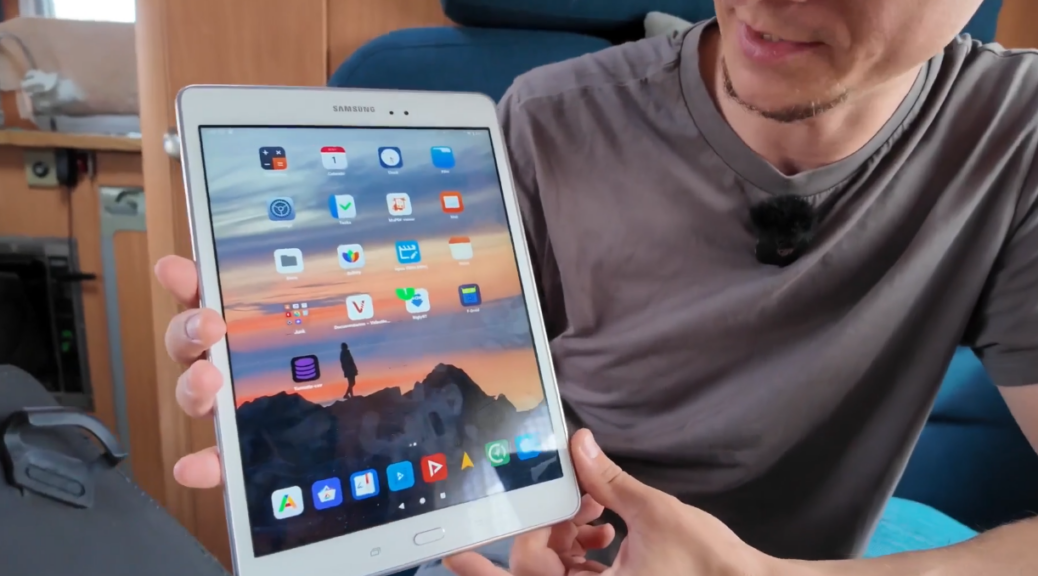
34€ tablet, made brand new with eOS
The story goes like this: we needed a tablet for Sasha to use for a month. She goes to Iceland for 2 months. First month she will do this workaway so she will stay with a family there and help out, so she needed a device that she can use at times to watch videos, browse the web, write, etc.. Because the phones are ridiculously small for most such tasks.
She won’t take the laptop since it is too big and expensive and she will hike the month after the stay, so imagine having to hike with your laptop.
Now the tablet would serve her well even for the hiking month since she can use it to read books (offline as pdf, epud, etc.), but also as a second device for navigation (offline maps) in case her phone dies.
A tablet that is! One that we can sell or give away when she comes back!
We found a Samsung Tablet SM-T550 from 2016 or so. 34€ second hand with case and keyboard. Perfect! We grabbed it.
Now see the video for more info:
Ok, so how did I do it?
Took around 2 days.
First of all, this ONLY works for this specific tablet, but the approach is similar for other tablets.
Our tablet: SM-T550 gt510wifi.
You need to download these files. I will reference them in this tutorial.
1. Erase the SHIT
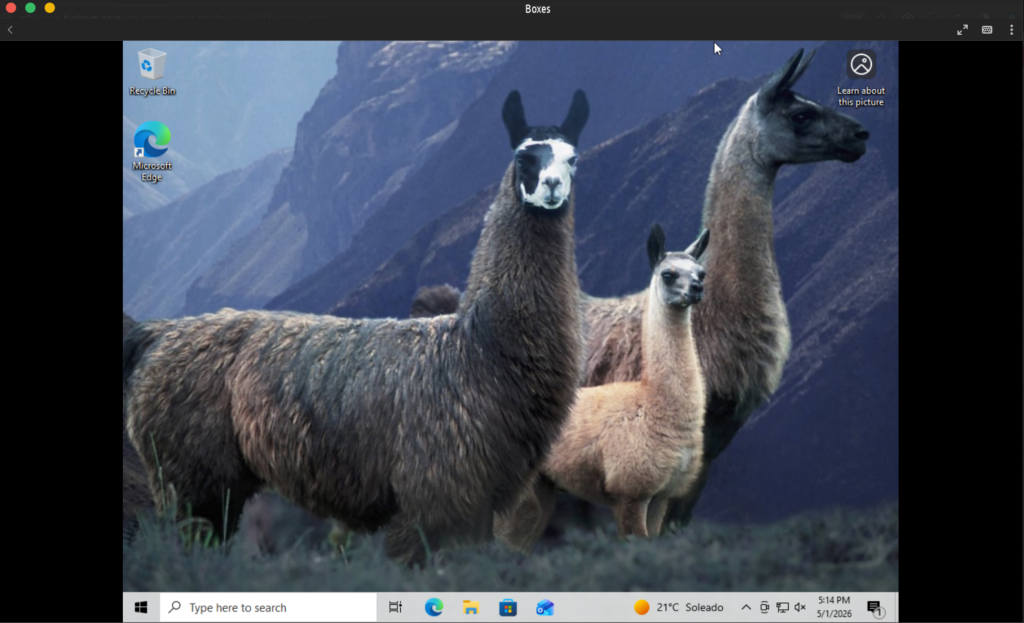
You need Windows. I installed it in Gnome Boxes (I use TROMjaro Linux). This is going to take time and it is annoying. I forgot how much of a piece of shit Windows is. But well.
In Gnome Boxes you can select Preferences and enable external USB devices to be recognized in Windows. Like:
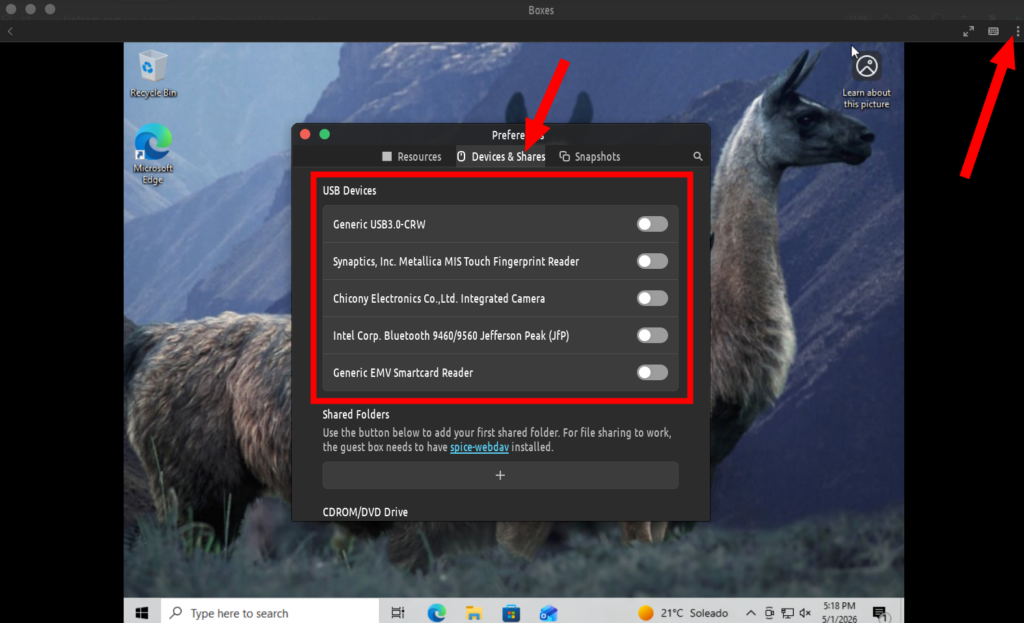
I’ve put all files on a USB stick from Linux, then had them accessible in Windows via the Gnome Boxes.
Now install the Samsung Drivers in Windows (SAMSUNG_USB_Driver_for_Mobile_Phones.exe).
Prepare the Tablet.
Do a factory reset. Then enable the Developer Mode. If you do not know how to do these maybe do not move forward because you will break the tablet.
Make sure the USB Debugging is set in Download/Media file mode.
You can watch how this guy does that:
You then need to put your tablet into Download Mode. See min 3 of that video how to do it.
Connect it now to your computer. In Gnome Boxes allow it to be shared with Windows like I said above.
Let’s Wipe!
Next extract Odin3-v3.14.1.zip. Then open Odin3-v3.14.1.exe. Click ok.
It looks like this:
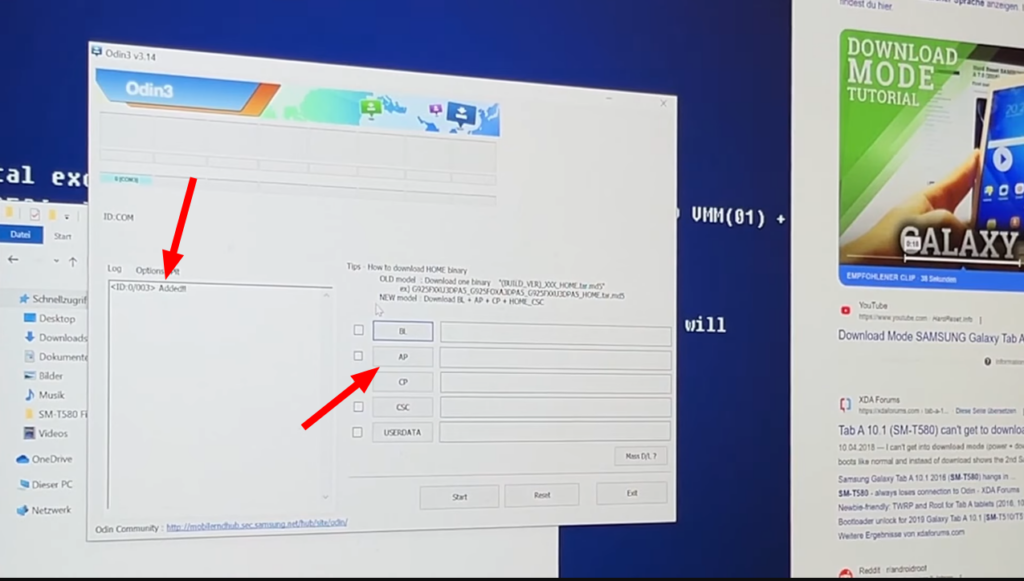
See if it detects your tablet. Then click AP. Select the file twrp-3.6.2_9-0-gt510wifi.img.tar. Before you click START, go to options and uncheck AutoReboot:
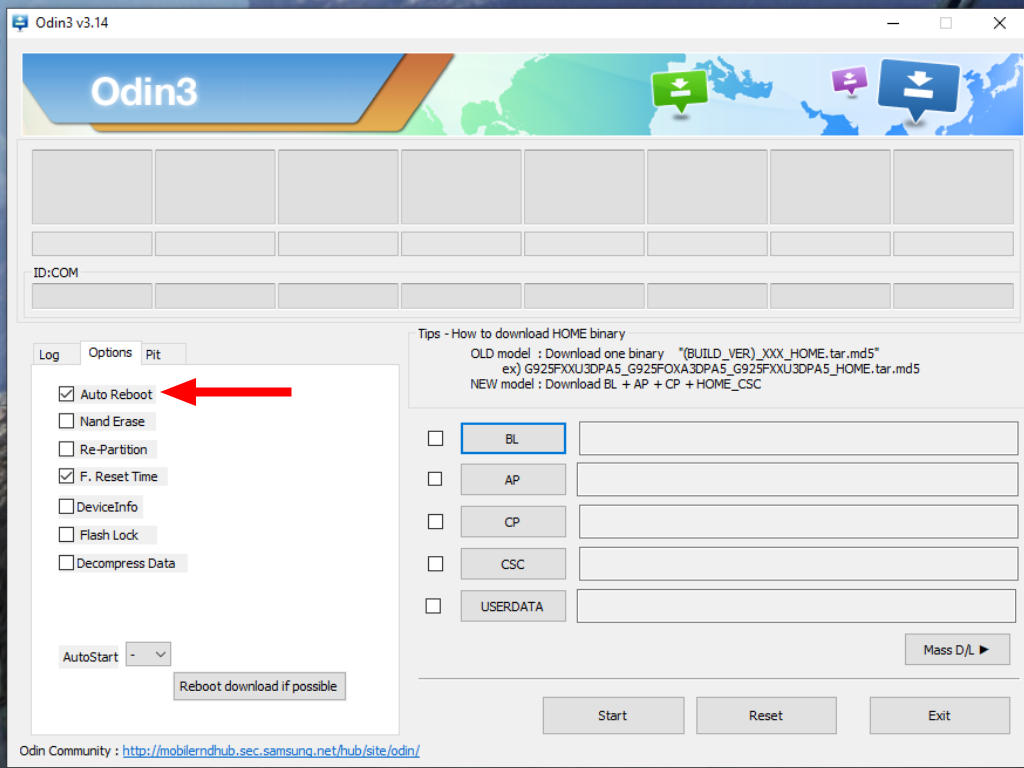
Click Start. Like the guy from the video does.
Now you have installed the WIPER!
Tricky part comes next.
You need to reboot the device into recovery mode. On the model I have I had to press the Power and Volume Down (or could be UP) until the screen turned back then immediately press the Power + Volume Down + Home button and keep press till it boots into the WIPER which looks like this:
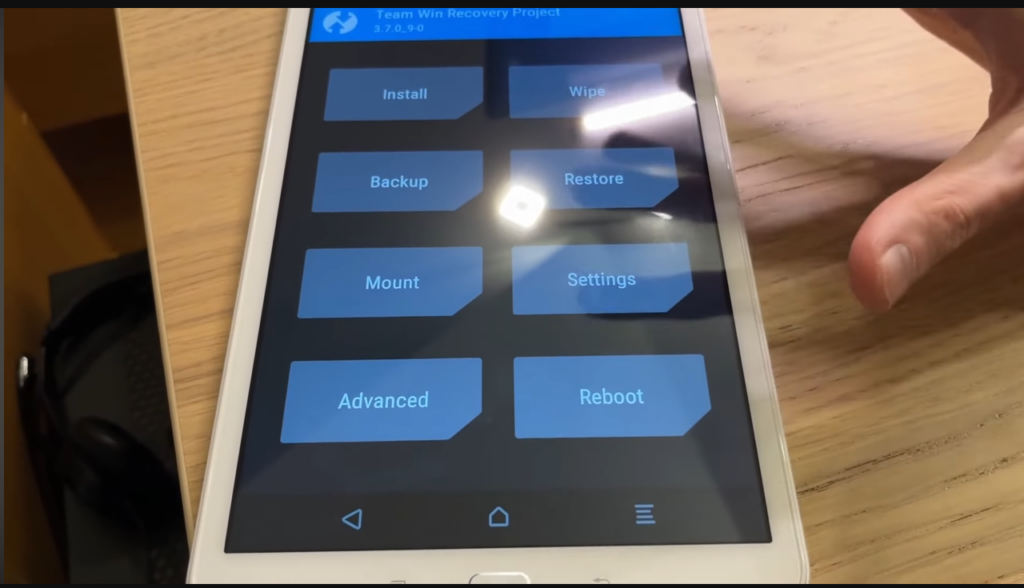
Took me many attempts to make this work. If it boots normally you have to start the process again and put the tablet in Download Mode, open Odin and so on….
Now to Wipe it properly just watch the same video to see how the guy wipes it clean and follow exactly.
2. Install eOS
If you managed to do all of this congratulations all of the hard part is done. I recommend putting the e-3.2-t-20251106-UNOFFICIAL-gt510wifi.zip file on a MicroSD card and insert into your tablet. Then select it for install. Again watch that video.
That should be it.
I went with eOS instead of Lineage just because…I like that they keep it simple and you do not need to do much after the install.
Anyway took me a long time to figure what files I needed for the job.
I hope this post can help others too…
Unbelievable that you have to do this….but is not people’s fault. Not even Google or Samsung. It is out trade-based society that is at fault here.