
How I backup 1.7TB of files on the road
I live in a custom made truck with limited mobile Internet, in Spain.
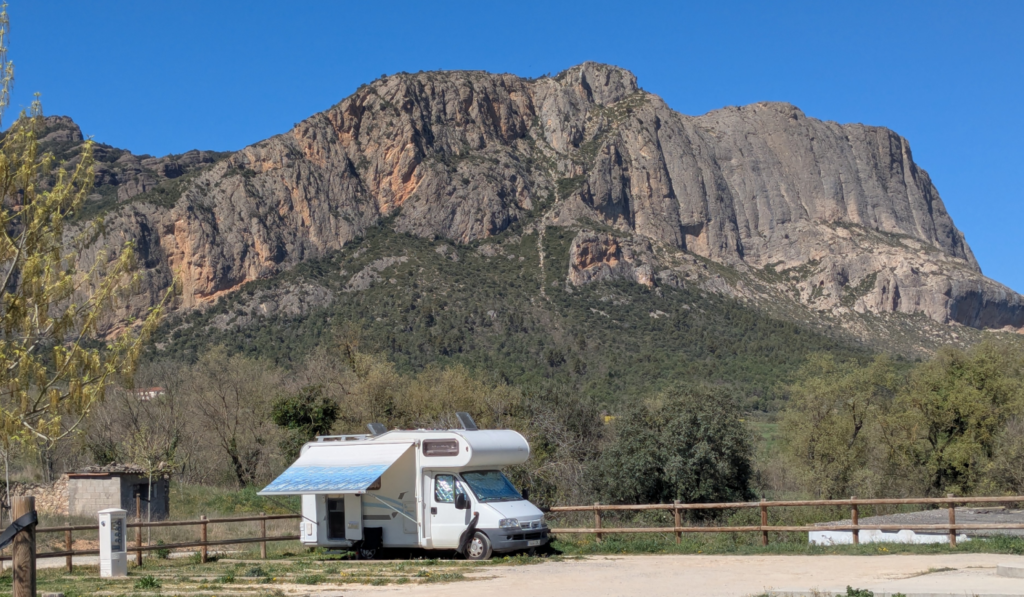
Yes it looks like a motorhome, but is officially a truck. If you disagree pls convince the authorities in Spain so I don’t have to do the car inspection every six months, like it is for trucks…
Anyway, I buy data plans via Lebara or Vodafone, some 250GB for around 15€. Buy twice a month and is enough for me. I make a mobile hotspot on my phone and that’s it.
I have some 33.000 photos/videos, and in total some half a million files on my computer, ranging from config files from my TROMjaro Distro to books I wrote or I am writing, videos I am working on, projects, and so forth. 1.7TB of files.
I want to be able to restore my files in case I either delete them by mistake or I lose my laptop, or my camper burns down (let’s hope not). And I want a super cheap and super easy solution!
Storage box + physical HDD + Kopia
Storage box.
For 13€ a month I bought a storage box from Hetzner. These boxes allow for a WebDAV connection among other. If you do not know what that is, no worries. It just means with some credentials (url, user, password) you can access the box. We need this for the backup app.
Once you buy it in their console is super easy to create users, and users have these WebDav Credentials.
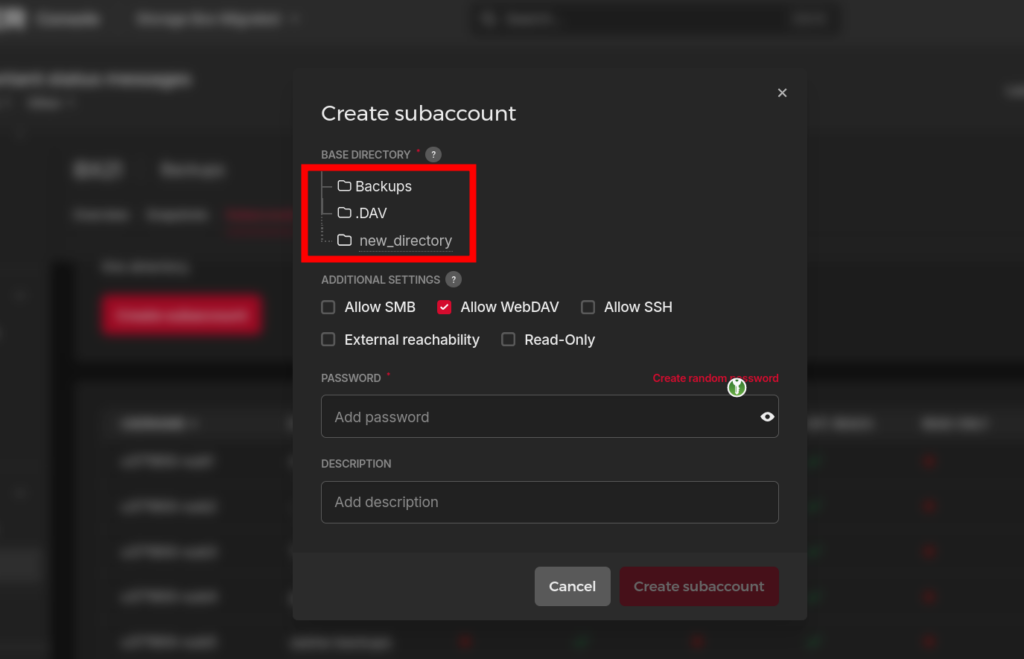
You can assign different folders for different users.
Kopia.
This is a trade-free backup application that looks a bit scary but it is the simplest and most reliable I could find. Download from here or get it here if you use TROMjaro. Get the GUI version (with an interface).
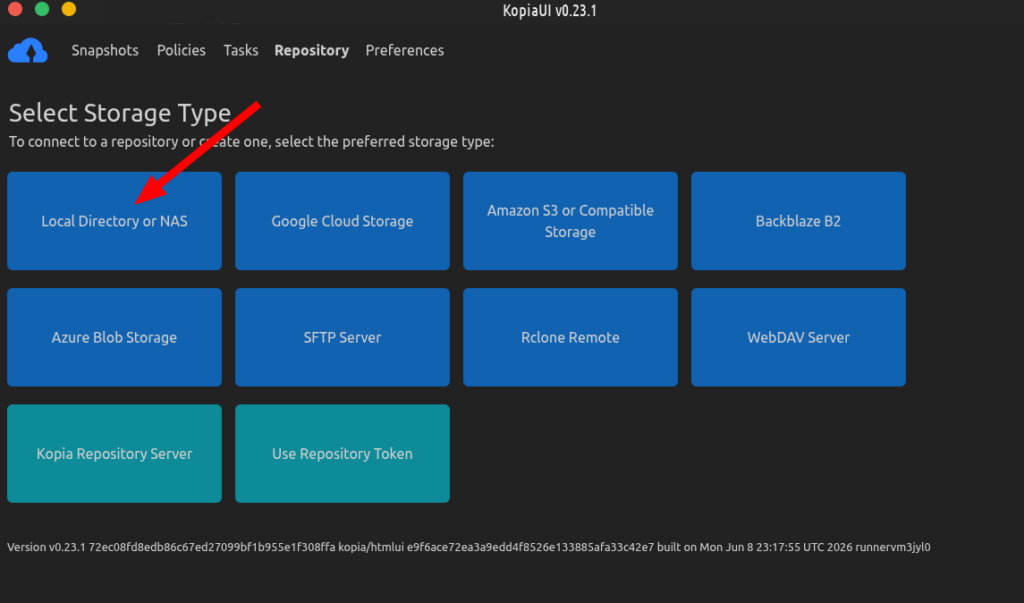
When you open it you see this:
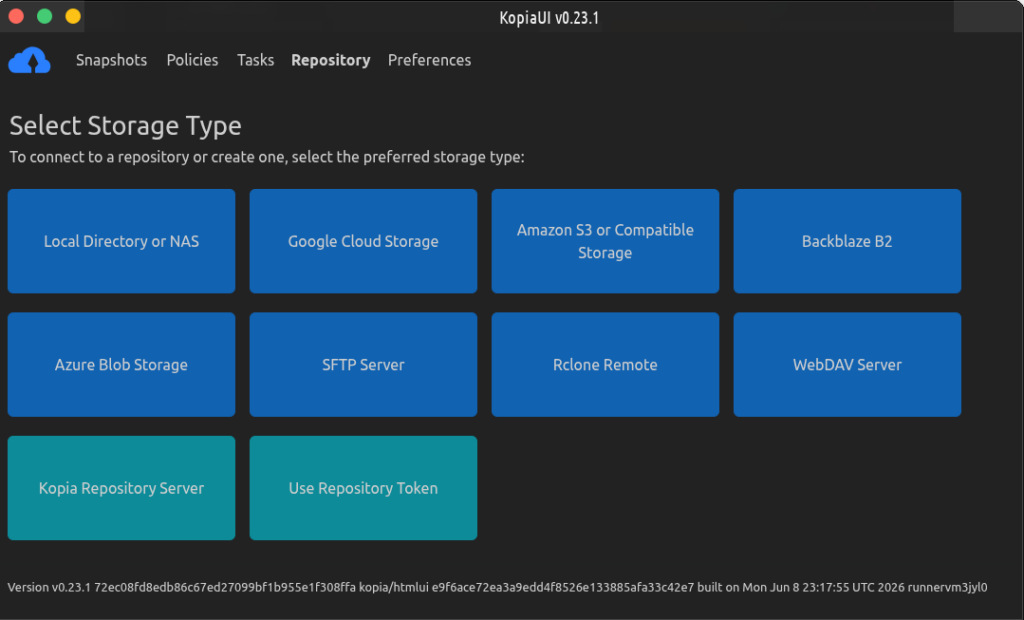
Simply choose that WebDAV and add your credentials from the Hetzner box. Connected!
Now select the folder(s) you want to backup. The backups are called “Snapshots” and the rules of the backups “Policy”.
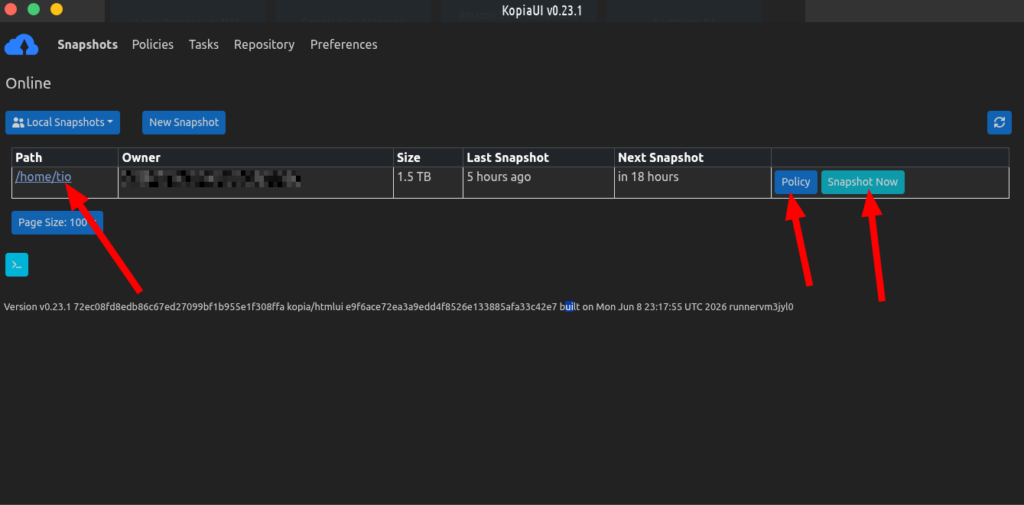
Click the Policy to do a few changes I’d recommend.
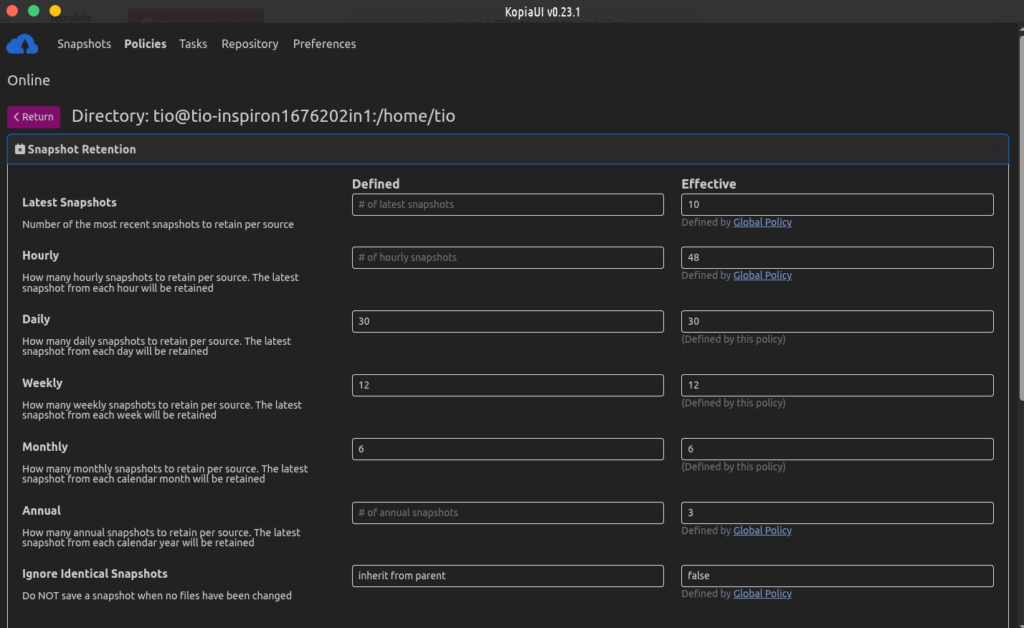
Snapshot retention is how many backups to keep. I keep the last 30 days, 12 weeks, and 6 months. Like so:
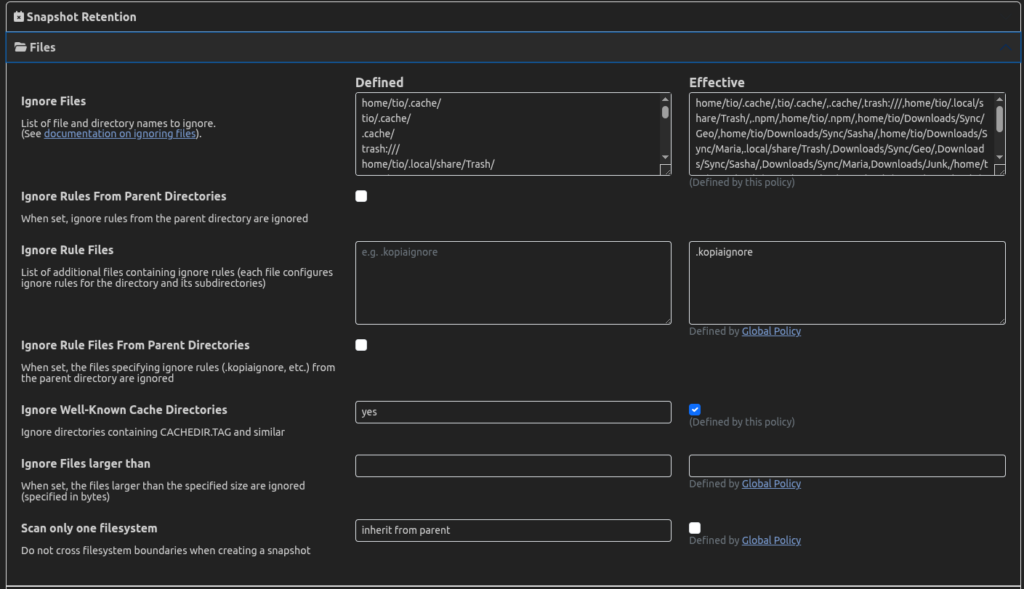
In Files you can ignore files and directories:
In compression select this:
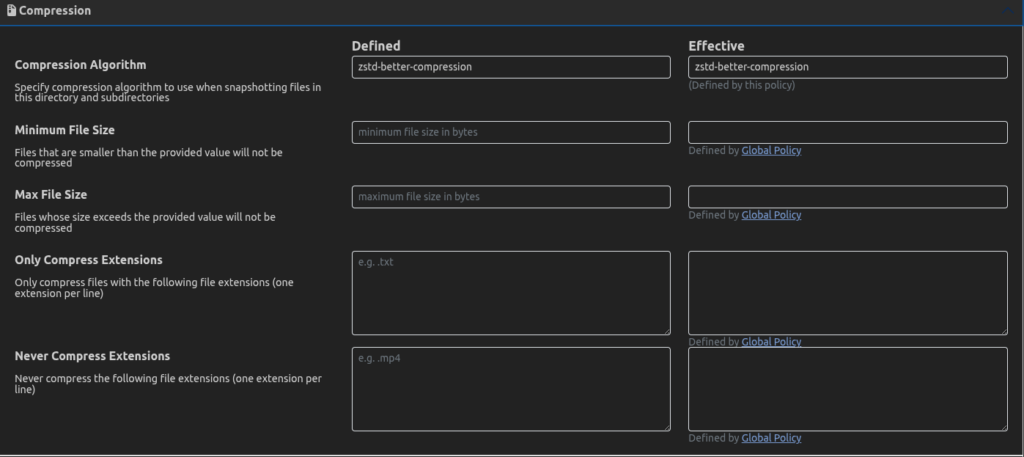
This will make your backups take less space. Of course all backups are encrypted.
Lastly Scheduling. I have it run once a day:
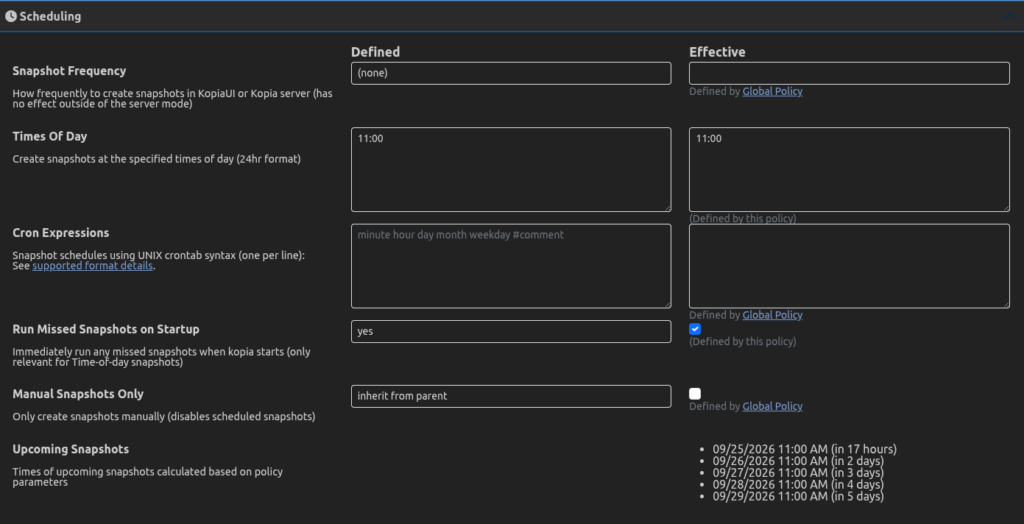
Save. THIS IS ALL!
Click Snapshot and let the first backup run. It will take some time depending on how many files you have.
The rest of the backups will only backup the files that have changed. Incremental. So will be very fast.
The best part about Kopia is this!
The point of backups is also to be able to access them super fast and intuitive. Can’t be easier than Kopia.
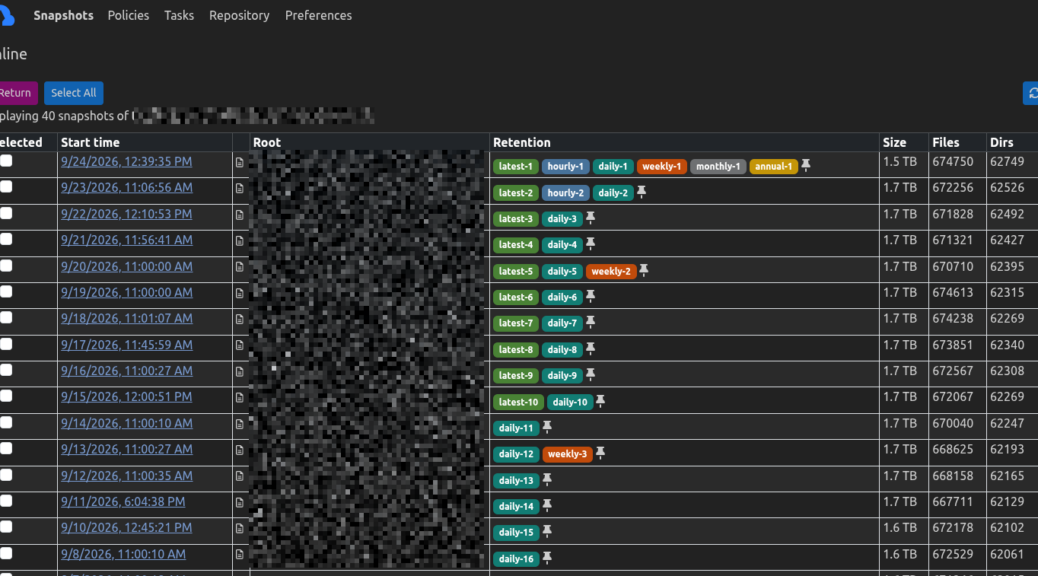
Click Snapshots and you see them all like that:
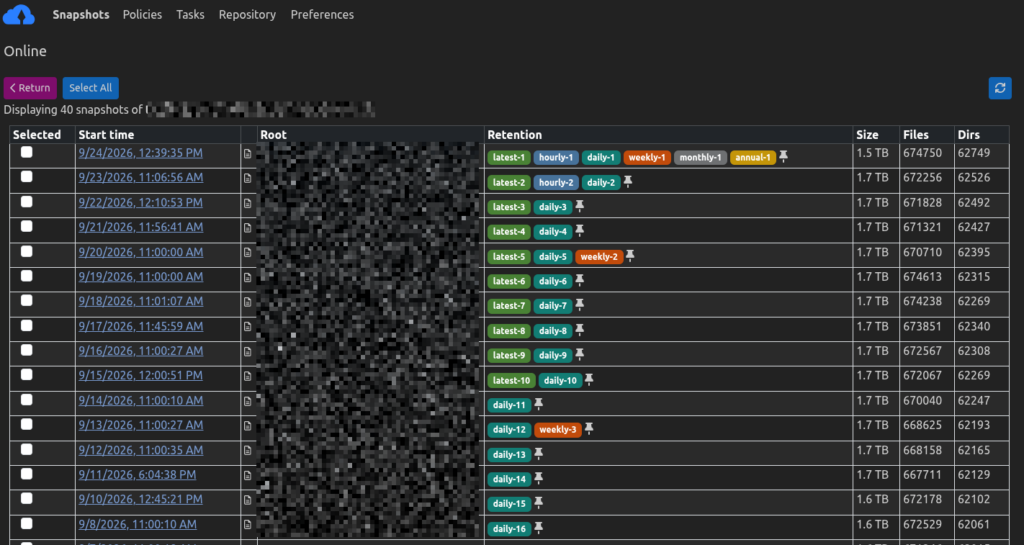
Click any date, then Mount as Local Filesystem, and then Browse (the cyan colored buttons):
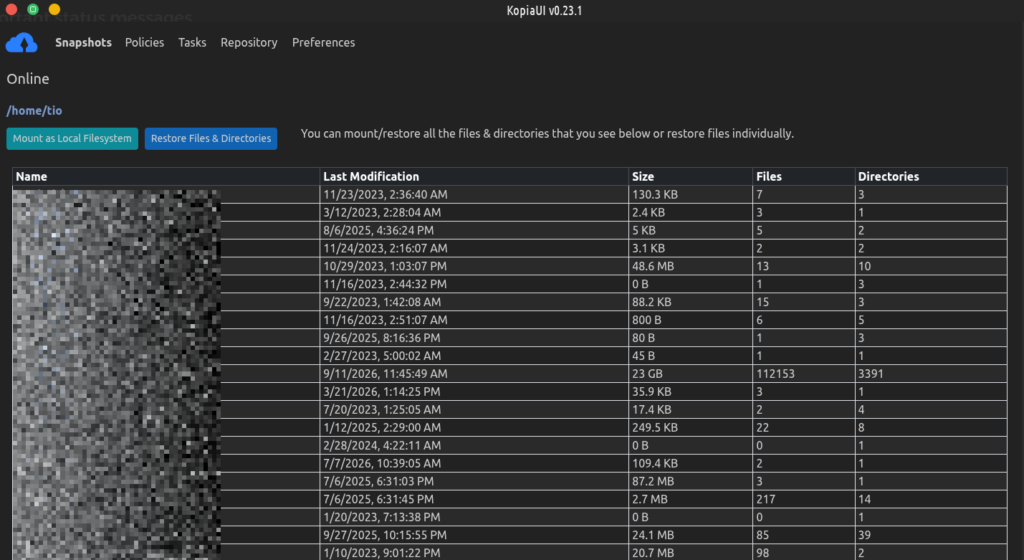
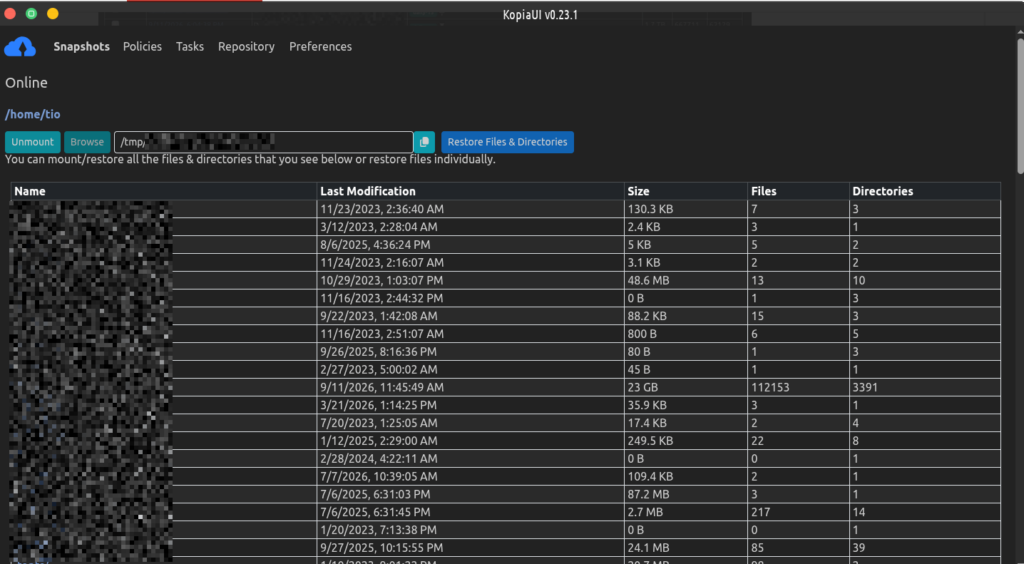
And now the magic! It opens your local file browser as if that’s your computer from whatever date you want to access the files. Look at this, left side is my Downloads folder right now, and right side is my Downloads folder from months ago:
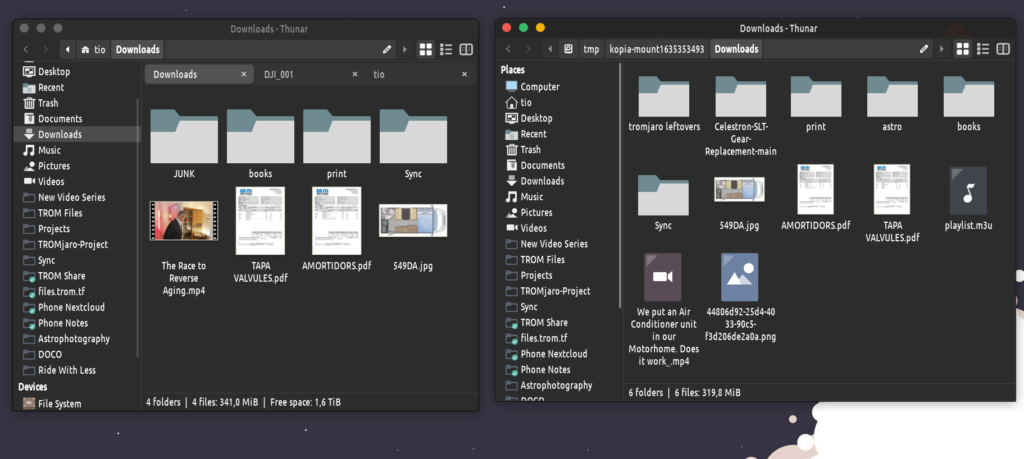
I can browse any file from months ago like it was on my computer, from documents to videos and photos. This is FANTASTIC. Is like you open a wormhole inside your computer and access it how it was in the past. To restore simply copy any file to your computer. And this is why I LOVE Kopia. No BS complicated processes….as simple as that.
Wanna access that document from 5 months ago? Mount that snapshot and open the document. Done.
When you done close that mounted snapshot window and unmount the snapshot from Kopia. That’s it.
The HDD.
I open a new repository (location) on Kopia, is a new window, and do the same but this time select a local folder on my external HDD. Do the same settings with policies and that’s it. Kopia will have a new backup setup to your external HDD.
I plug in my HDD once every 2 months or so and manually trigger the Kopia backup. Works well like that for me.
Conclusion
Now I have daily backup to the cloud and for 13€ a month, 5TB, I can backup all of my files for years. Same box is used for family and friends. Is enough space. All backups are encrypted and run daily. I forget about Kopia 99% of the time. Is just there, starts at boot and does its job.
From time to time I do manual backups to my external HDD.
And whenever I want to access my old files I simply “mount” a snapshot and browse through them…
If I lose my laptop, there are 2 places where all of my files are. From my external HDD I can easily and fastly copy them back to a new machine. If my camper burns down with all of my stuff including my external HDD, I have all of my files online, encrypted. All I need are my WedDAV credentials.
WHERE ARE THEEEEM??
Passwords!
I only know 1 super long password. And I have hundreds of passwords. Here’s how I do it.
KeePassXC.
Another trade-free app. Using it for 10 years now. Never let me down. Grab from here.
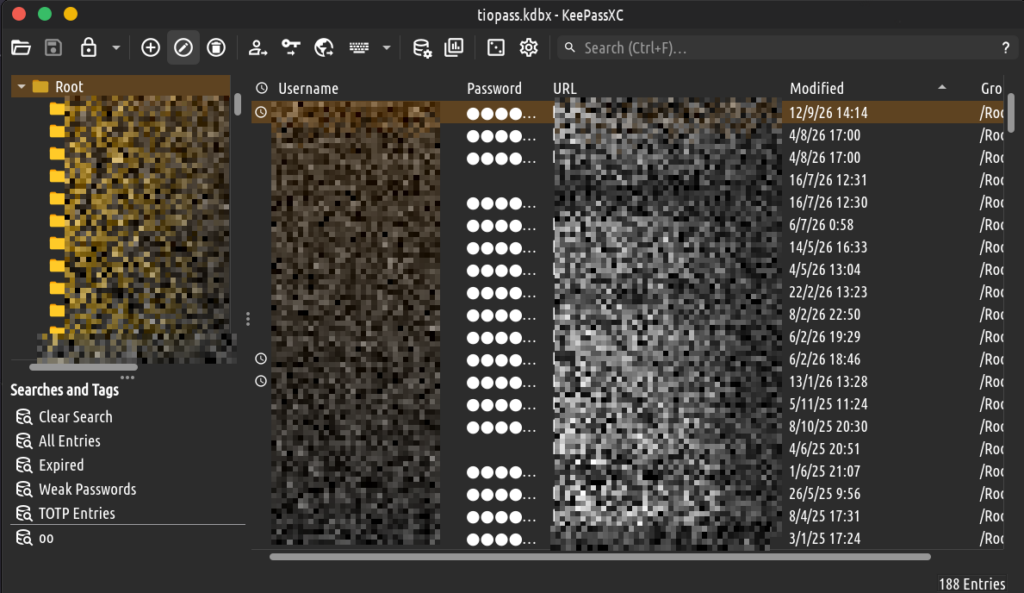
You create one database (a file) that is encrypted with the password you put. So just remember that password. And the file you can put anywhere you want. I sync it to my TROM Files account where I also know the login password (is not my main account but used for this case). So via Nextcloud I sync my KeePassXC file to my TROM Files account.
If all burns down and I need my passwords I go to files.trom.tf, login, download the password file, and open it locally with KeePassXC. Since it is encrypted I don’t mind sharing it with a few friends too just in case.
This KeePassXC integrates with any browser so you figure that out, is easy :).
So I can grab those WebDAV credentials too in case of a total burn down of my camper.
So, I know a main password for KeePassXC, and the login for TROM Files. I use a 13€ Hetzner storage box and an external HDD, and Kopia. And I am all set with my files and passwords backed up in different locations.
Nice and easy!